




















0
Views
0
Plays

0.0
0
0 Likes
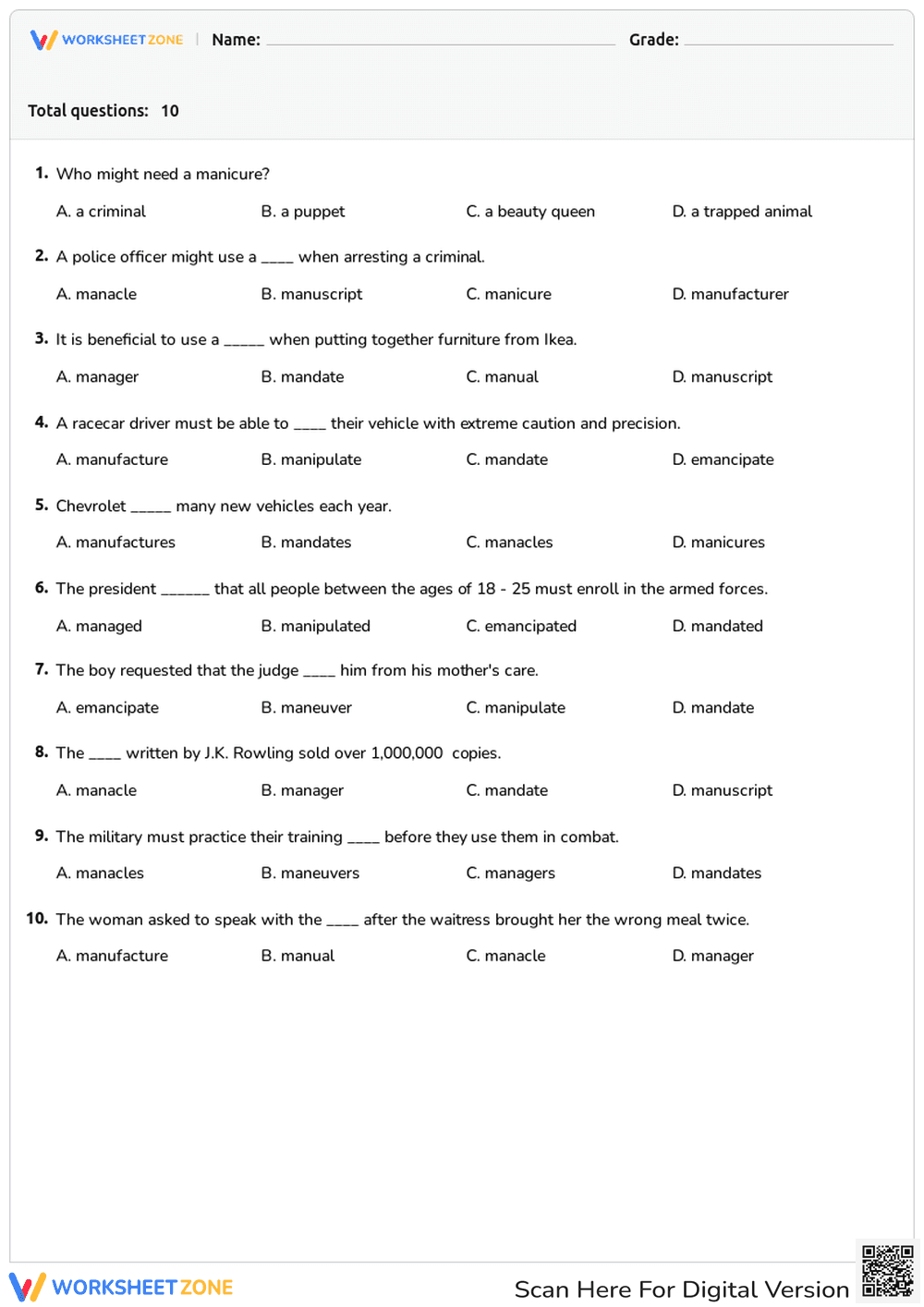
Using Action Verbs Correctly in Context
0 Views
0 Plays
Paste this activity's link or code into your existing LMS (Google Classroom, Canvas, Teams, Schoology, Moodle, etc.).
Students can open and work on the activity right away, with no student login required.
You'll still be able to track student progress and results from your teacher account.
Information
Description
What It Is:
The image shows a screenshot of a software interface, specifically a content management system (CMS) or similar application. It displays options related to publishing and workflow management, including buttons for 'Submit,' 'Schedule,' 'Publish,' 'Approve,' 'Reject,' 'Cancel Approval,' 'Unpublish,' and 'Start a Workflow.' There are also options to view the 'Status' and 'Tasks.' The interface also displays fields like 'Home' and 'Page Image.'
Grade Level Suitability:
This is not suitable for traditional grade levels as it depicts software interface options. It is more appropriate for professional development, adult learners, or individuals learning to use content management systems or workflow software.
Why Use It:
This image can be used to illustrate the steps involved in a digital publishing workflow, demonstrate the different roles and permissions within a content management system, or teach the basics of task management in a digital environment. It can also show the options available to manage the lifecycle of digital content.
How to Use It:
This image can be used as a visual aid in presentations, tutorials, or training materials. It can be incorporated into step-by-step guides on how to submit, approve, and publish content using a specific software platform. You could also use it as a starting point for discussing the importance of workflow management in organizations.
Target Users:
The target users are content creators, website administrators, digital marketers, project managers, and anyone involved in managing digital content or workflows within an organization or on a website. It is useful for those learning or training on using content management systems.
The image shows a screenshot of a software interface, specifically a content management system (CMS) or similar application. It displays options related to publishing and workflow management, including buttons for 'Submit,' 'Schedule,' 'Publish,' 'Approve,' 'Reject,' 'Cancel Approval,' 'Unpublish,' and 'Start a Workflow.' There are also options to view the 'Status' and 'Tasks.' The interface also displays fields like 'Home' and 'Page Image.'
Grade Level Suitability:
This is not suitable for traditional grade levels as it depicts software interface options. It is more appropriate for professional development, adult learners, or individuals learning to use content management systems or workflow software.
Why Use It:
This image can be used to illustrate the steps involved in a digital publishing workflow, demonstrate the different roles and permissions within a content management system, or teach the basics of task management in a digital environment. It can also show the options available to manage the lifecycle of digital content.
How to Use It:
This image can be used as a visual aid in presentations, tutorials, or training materials. It can be incorporated into step-by-step guides on how to submit, approve, and publish content using a specific software platform. You could also use it as a starting point for discussing the importance of workflow management in organizations.
Target Users:
The target users are content creators, website administrators, digital marketers, project managers, and anyone involved in managing digital content or workflows within an organization or on a website. It is useful for those learning or training on using content management systems.


